Instructions
for uploading DASS staff web pages
The following notes
explain how to create a simple personal profile page on the LondonMet website.
The idea is that each member of staff in DASS will maintain their own page.
This means that when you want to alter and ammend your profile you will be able
to do it immediately yourself.
Londonmet web pages
are created using software called Shado. Shado is accessed over the web and
gives you a view of your pages in a mode that allows them to be edited.
In order to use
Shado you must use Microsoft Internet Explorer 5 or higher on a PC - or Mozilla
on a Mac.
The process involved
in editing pages requires that you have web browsing and word processing skills.
You should be able to create your pages independently by following the instructions
below. If you get stuck have a look at the troubleshooting
section. If that doesn't help - please email me at c.lane@londonmet.ac.uk
Before
beginning to create your page please ensure that you have read the
DASS staff pages style guidelines.
Please
contact Chris Lane c.lane@londonmet.ac.uk
if you want to upload a photo of yourself to your page.
Once you have finished
creating your page you can view it. Click here for information
about your web address.
| Step
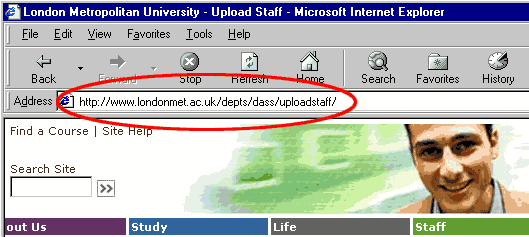
1 - enter the URL http://www.londonmet.ac.uk/dass/uploadstaff/
into the address bar of your web browser
TIP
if you want to look at these instructions while working - open two browser
windows and switch backwards and forwards between them.
|
 |
Step
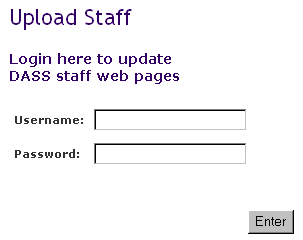
2 - in the next page enter the username, password exactly as
they appear in the email sent to you previously - including the
same capitalisation. When you have typed in all the details,
press 'Enter'.
If you don't
have your shado user id and password - please contact Rosie in the departmental
office for help. |
 |
| Step
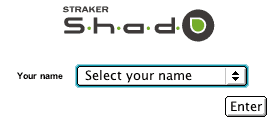
3 - in the next screen select your name from the drop down menu. |
 |
| Step
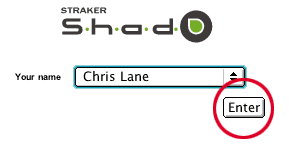
4 - When you have selected your name, press 'Enter'. |
 |
| Step
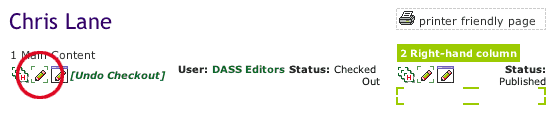
5 - In the next page, click the small pencil symbol in the 'main
content' area (the one in the middle - not on the right). |
 |
Step
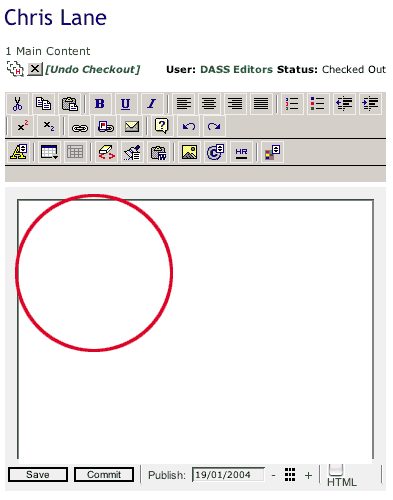
6 - In the next page, click in the white editing area and begin
to type.
IMPORTANT
Please note that since these notes were created the text editing
toolbar has slightly changed and been reorganised. These instructions still
work - but just bear in mind that the icons that are described in the notes
might be in a slightly different location than the ones shown in the illustrations.
|
 |
Step
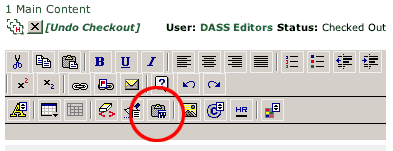
7 - If you like you can paste text from other applications -
but there is a special method for doing this. You must use the "paste
clean from word" button. The result of this will be that text is
pasted without formatting. This is important because unformatted text
won't clash with the style of the Londonmet website. You can embolden
text if you like after it has been pasted in.
|
 |
| Step
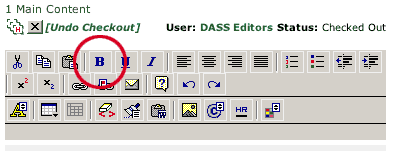
8 - Any headings should be created in bold to differentiate them
from body text. Please don't use any other style of formatting. |
 |
| Step
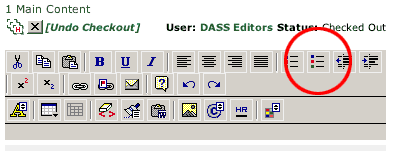
9 - If you want to use a bulleted list - use the bulleted list
tool.
Use
return to make new lines in your list
- then select all the lines that you want to include
- then click the bulleted list button.
|
 |
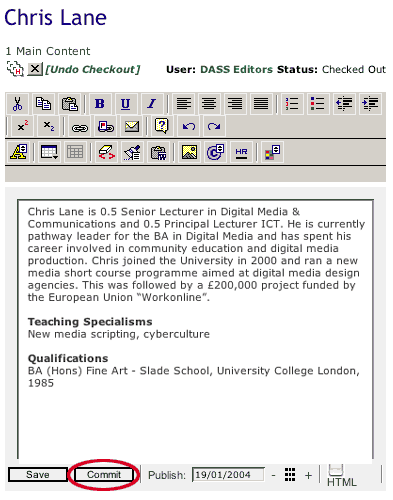
Step
10 - To save your work click the 'Commit' button - this makes it
live on the web straight away.
|
 |
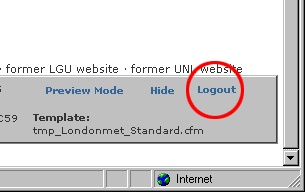
| Step
11 - You should logout when you have finished work (remember to
commit first). Do this by clicking "logout" in the bottom right
hand corner of the window. |
 |
| NOTE
- Before you begin you need to understand a few important things that
make web pages different to print documents. This has an impact on how
you space rows and columns on your page.
- If you
press the return key to make a new paragraph - there will always be
a double line space between the rows
- If you
want to make a new line but don't want to make any extra space between
lines use the following method: with the shift key held down press
the return key
- bear
in mind that the tab key does not work on web pages. Therefore please
do not tabulate anything on your page. Instead of using columns to
organise information - please organise things in rows
|
| Troubleshooting
1 - If you have difficulty logging in and you are sure you are
using the correct login details - try exiting the web browser, reopening
it and trying to login again.
Any
further problems - email c.lane@londonmet.ac.uk |
| Troubleshooting
2 - If you logout and want to login again immediately you may
be presented with the wrong login screen. To login again you must return
to this page:
http://www.londonmet.ac.uk/dass/uploadstaff/
and login from there.
|
| Troubleshooting
3 - Some web browsers are set to prevent 'pop-up' windows appearing.
Unless your browser is set to allow popup windows you will not be able
to navigate to your editing page. If you don't reach your page in editing
mode - you may need to adjust the settings in your web browser to enable
pop-ups.
|